
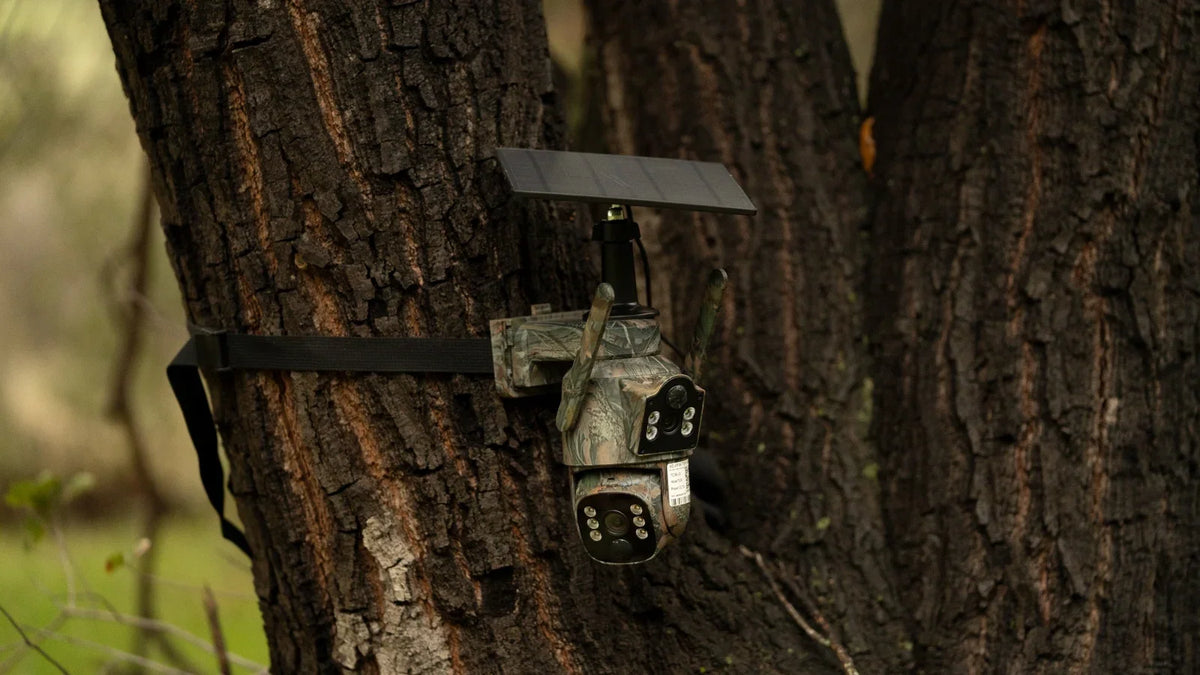
If your cellular trail camera stops sending videos, run one fresh motion test and check three things separately: whether a notification arrives, whether the event appears in playback, and whether live view opens. Those results tell you where to look first. The Voopeak TC39 uses 4G LTE for remote access and offers motion alerts, live view and recorded playback.
| What you see | Check first |
|---|---|
| A fresh clip plays, but no phone notification appeared | Alert schedule and phone notification permissions |
| An alert appears, but the matching clip is missing or will not play | Recording settings, storage source and playback connection |
| Live view and fresh events both fail | Battery, cellular reception and data plan |
| Live view works, but a walk test creates no recording | Motion detection, recording mode and storage |
1. Run a timed motion test
Pick a time when the camera should be monitoring. Walk through its expected detection area once, then write down the exact time. Give the event time to finish and check the app's event and playback views for that camera and date. Try live view separately. Looking up one known event helps you avoid mistaking an old alert or an old clip for the result of your test.
Repeat the test only after changing one setting. If several cameras share an account, confirm that the device name matches the unit you tested. Use the camera's recorded timestamp when comparing against the phone, and account for any time-zone difference.

2. Check motion detection and the monitoring schedule
When live view opens but your walk creates no event, check whether motion detection and event recording are enabled for the time you are testing. If the app offers detection filters, make sure they allow your test subject. A person walking past cannot verify an animal-only filter. Use the same route before and after changing a setting so you can see what helped.
Check the physical view too. A branch near the lens or an approach that stays at the edge of the frame can make the result hard to interpret. Walk across the open part of the view, then test again from the area you actually want to monitor. On the dual-lens TC39, confirm which lens view you are using for comparison. A subject visible on one live feed can be outside the other view.

3. Verify power and solar charging
Check the battery reading if the device still responds. At the mount, inspect the solar lead and charging connection and check whether leaves or an overhang shade the panel. If the battery is low, recharge it according to the manual, then check whether the camera completes a live-view and event-playback test. If charge falls again over the next few days, look at panel exposure and how often the device is triggering.
Compare the time of the last successful clip with any change at the site. A storm, a moved branch or a connection disturbed during maintenance may explain why a previously reliable setup went quiet. Note the times rather than diagnosing a battery issue from a single missing event.

4. Test the camera's 4G LTE connection at the mount
Try opening a fresh live stream from the exact mounting location. A phone showing good service nearby gives you a rough clue. The camera's own connection is the better test because the devices may use different networks. Check the antenna setup against the manual. If service seems intermittent, test the camera in a nearby open spot, create a new event there, then compare the result with the original mount.
If short live sessions open but playback stalls, repeat the playback check when the camera and phone both have stable connections. Be clear about which side you changed. Switching your phone to a different network can help isolate a phone-side problem. Moving the camera helps test reception at the camera.
5. Check the SIM and cellular data plan
The TC39 comes with a built-in SIM. Verify that its plan is active, that any introductory data has not expired and that available data remains if your plan has a limit. If the app shows an account or plan issue, resolve that before buying storage or changing detection settings. If you manage several cameras, verify the plan for the affected device.
Cellular data and cloud storage cover different functions. The cellular plan provides the connection the camera uses for remote access. Optional cloud storage is a separate service for saving footage online. Check the relevant subscription when the symptom points to that service.
6. Verify where the camera saved the video
Check that playback is looking at the intended source and date. If you use local recording, check that the camera recognizes its card and that the storage status shows no error. The TC39 product page recommends a U3 or faster card up to 128 GB. If you can access the card, turn the camera off before removing it and follow the manual. Open a copy of the test clip on another device. A playable local file narrows the issue to remote access or app playback.
If you use cloud playback, check whether cloud recording is active for that camera and whether the event falls within your plan's retention period. If you need to test another card, keep the existing one with its footage. Back up any files you want before formatting a card, because formatting erases them.

7. Check phone notifications and the app account
If the latest clip plays but there was no push alert, check the app's alert settings and monitoring schedule, then check the phone's notification permissions. Focus or Do Not Disturb can also silence an alert. Create a fresh test event after making a change and check the phone's notification history where available.
If the camera is shared, make sure you are signed into the account that has access to the device and the playback feature you are testing. Close and reopen the app, and check for an update through the phone's app store. If a second authorized phone can play the same recording, note the difference for troubleshooting.
8. Restart, retest and collect details for support
Follow the manufacturer's normal restart instructions, allow the camera to reconnect, and create a fresh event. Check live view, notification and playback again. Keep a short record of which checks passed, what changed and when video last worked. Before resetting the camera, preserve any important clips and note the settings you would need to restore.
If the problem persists, share your model, app version, the time of the test, whether live view worked, which storage source you checked and the exact error shown. A report such as “Live view opens and the 2:15 p.m. event plays from the card, but remote playback stalls” gives support a much clearer starting point than “videos stopped sending.”
FAQ
Why do I get an alert but no video?
An alert can arrive even if the clip is unavailable in the selected playback view. Check the event time, recording settings and storage source, then try playing a fresh test clip.
Can TC39 play back videos without the site's Wi-Fi?
TC39 uses 4G LTE at the camera for remote access. Check cellular coverage and the data plan when you cannot reach it remotely. Your phone also needs a working internet connection.
Does a working live stream confirm event recording?
Live view confirms you can access a current feed. To test event recording, trigger motion and play the saved clip at the matching time.

Hinterlasse einen Kommentar
Diese Website ist durch hCaptcha geschützt und es gelten die allgemeinen Geschäftsbedingungen und Datenschutzbestimmungen von hCaptcha.